Mobile
Your Galaxy Phone Can Fix Your Headphone Audio — If You Know Where to Look
Samsung's Adapt Sound builds a hearing profile for your ears in under a minute, and most people have never touched it.
- Author
Gadgion
- Published
- Filed under
- Mobile
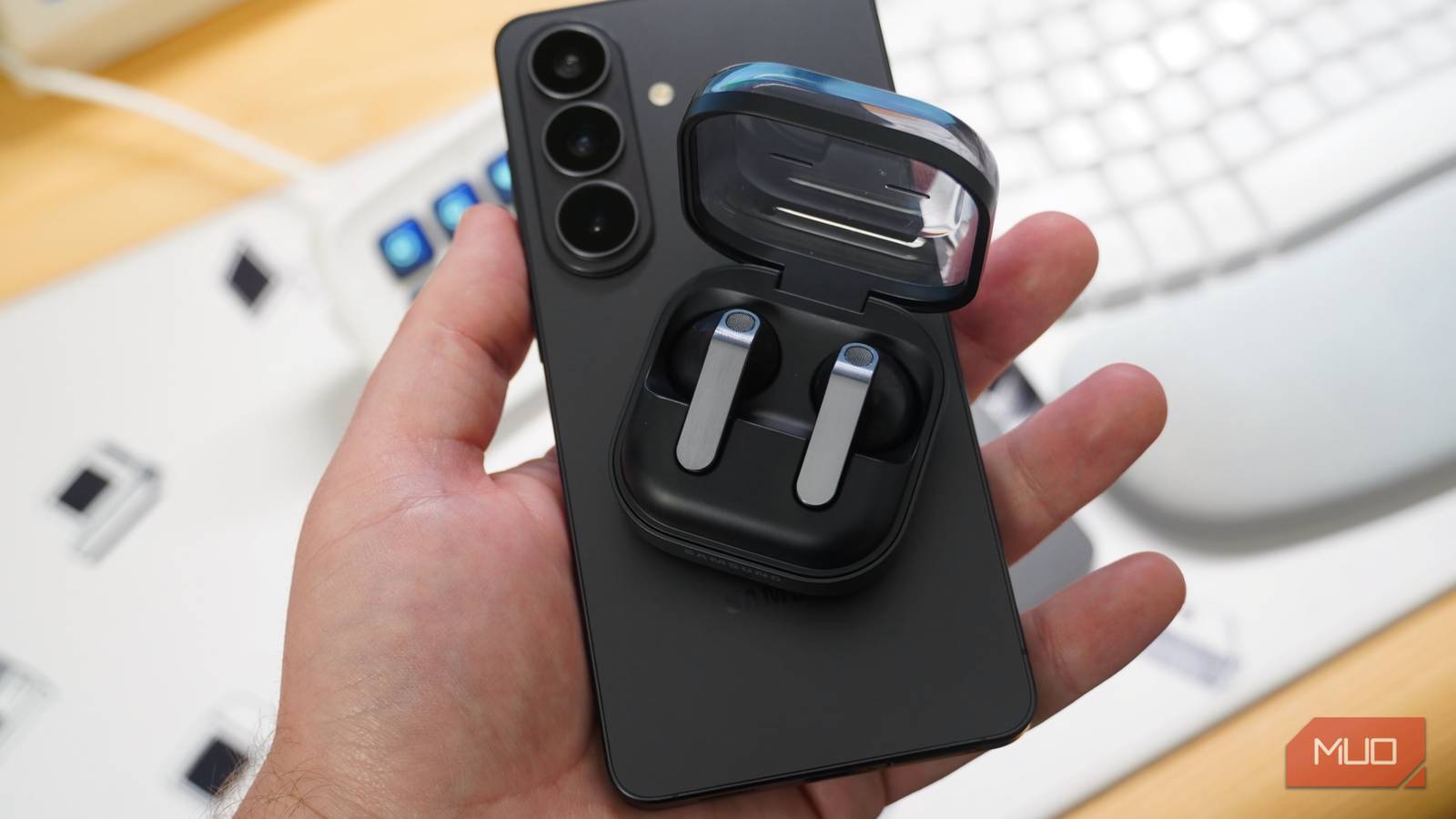
What is Adapt Sound on Samsung Galaxy phones?
Adapt Sound is a hearing-based sound tuning feature found under Settings > Sounds and vibration > Sound quality and effects on Samsung Galaxy devices. Unlike a traditional equalizer, it does not ask you to guess which frequencies to boost. Instead, it plays a series of tones at different frequencies into each ear individually and asks you to tap a button every time you hear one. Based on your responses, the phone builds a profile that compensates for frequencies where your hearing is weaker. The whole process takes less than a minute and works with any pair of headphones — wired or wireless, Samsung-branded or otherwise. You can also choose whether the profile applies to media playback only or extends to phone calls, and whether you prefer a clear or soft sound presentation.
Why would my age affect how headphones sound to me?
Human hearing degrades gradually and imperceptibly over time. As people age, they lose sensitivity to certain frequencies — particularly high frequencies — without realizing the shift has occurred. A 20-year-old and a 35-year-old listening through the same pair of headphones are hearing different things, not because of taste but because of anatomy. Samsung's Adapt Sound feature addresses this by offering three age-based presets: one for users under 30 that boosts high frequencies, one for ages 30 to 60 that boosts high and mid frequencies, and one for those over 60 that boosts all frequencies. Each preset lets you compare the original and adjusted audio before committing. A writer testing the feature at age 30 reported a noticeable improvement, while noting that users under 20 or 25 may hear little or no difference.
How is Adapt Sound different from an equalizer?
An equalizer lets you manually drag sliders to adjust bass, mids, and treble based on what sounds good to you. Adapt Sound takes a fundamentally different approach: it measures your actual hearing ability through a calibrated test and then compensates for the specific frequencies you struggle to perceive. The result is not a matter of preference but of biological correction. Someone who has lost sensitivity at 4 kHz will get a targeted boost at that frequency, regardless of whether they know what 4 kHz sounds like. This distinction matters because many people are not comfortable navigating an equalizer, and guessing at slider positions often produces worse results than no adjustment at all. Adapt Sound removes the guesswork by treating the problem as a measurement rather than a vibe.
What other audio features does a Galaxy phone offer besides Adapt Sound?
Your Galaxy phone includes Dolby Atmos, which creates spatial audio that flows above and around you for an immersive experience. You can set it to Auto mode, so it automatically optimizes sound based on what you're listening to—whether music, movies, or podcasts—for the best effect in each scenario. Additionally, the UHQ Upscaler attempts to restore detail that's typically lost during audio compression, making music sound richer and more detailed. However, this feature only works with wired headphones or compatible wireless earbuds; otherwise, it's grayed out in the settings. For Bluetooth audio, you can manually select your audio codec by enabling Developer Options—tap the Build Number in Settings multiple times to activate it—and then choosing from options like LDAC, which pushes significantly more data than the standard SBC codec. LDAC translates to noticeably better audio quality over Bluetooth if your headphones support it, offering higher fidelity for wireless listening. To access Dolby Atmos and UHQ Upscaler, go to the sound quality and effects section in your phone's sound settings, and for Bluetooth codecs, use the Developer Options menu to lock in your preferred setting rather than relying on auto-negotiation.
How do I get better Bluetooth audio quality on my Galaxy phone?
To improve Bluetooth audio quality on your Galaxy phone, begin by enabling Developer Options—go to Settings, tap the Build Number multiple times, and then access Developer Options from the main menu. Within Developer Options, find the Bluetooth audio codec setting and manually select a higher-bandwidth option like LDAC instead of leaving it on auto-negotiation. LDAC transmits significantly more data than the default SBC codec, which can lead to improved audio clarity and detail, especially for headphones that support it. For example, if your wireless earbuds are LDAC-compatible, you'll benefit from reduced compression artifacts and a more faithful sound reproduction. However, this feature may not work with all wireless earbuds, so check your headphone specifications to confirm codec support. Once you've set the codec, it applies to all Bluetooth audio playback, but note that higher codecs like LDAC might consume more battery life, so monitor your device's performance. This manual control lets you prioritize audio quality over automatic codec selection, ensuring you get the best possible sound from your wireless headphones without needing additional apps or accessories.
Will I actually notice a difference with Adapt Sound?
The difference you hear with Adapt Sound depends largely on your age and inherent hearing capabilities. For someone in their early twenties with typical hearing, the change might be subtle. However, for a user around thirty or older, the personalized profile can significantly alter the listening experience. This is because hearing naturally declines with age, particularly in higher frequencies, and the feature compensates by boosting the exact frequencies where your personal test revealed a dip. For instance, the preset profile for those under 30 boosts high frequencies to counter the early, often unnoticed, loss in that range. Beyond the hearing test, you can fine-tune the result by selecting a Clear or Soft sound preference. Clear emphasizes detail and pronounced highs, while Soft offers a relaxed, smoothed-out character. This adjustment lets you control the final sound signature, so a compensation that feels sharp can be softened for comfort, tailoring the enhancement to your personal taste.
Can I use Adapt Sound for phone calls or only for music?
Adapt Sound allows you to control whether the personalized sound profile applies to media only or to phone calls as well. After completing the hearing test in the Adapt Sound menu, the phone prompts you to specify which earbud you prefer for calls—a practical question since many people have slightly different hearing between their left and right ear. Following that, you choose between applying the profile to media only (music, videos, podcasts) or to calls as well. If you select media-only, the sound correction enhances your entertainment audio but remains disabled during phone conversations, which some users prefer if the frequency boost feels unnatural with speech. Enabling the profile for calls extends the audio enhancement to voice audio, which can make a meaningful difference for anyone who struggles to hear conversation clearly through earbuds, improving clarity and reducing the need to increase volume. You can change this setting later in the Adapt Sound menu if your preference shifts, allowing you to adapt based on different listening scenarios. This flexibility ensures that the profile enhances both music and calls as needed, tailored to your specific hearing and usage patterns.